Why Smart Home Devices Disconnect After Moving
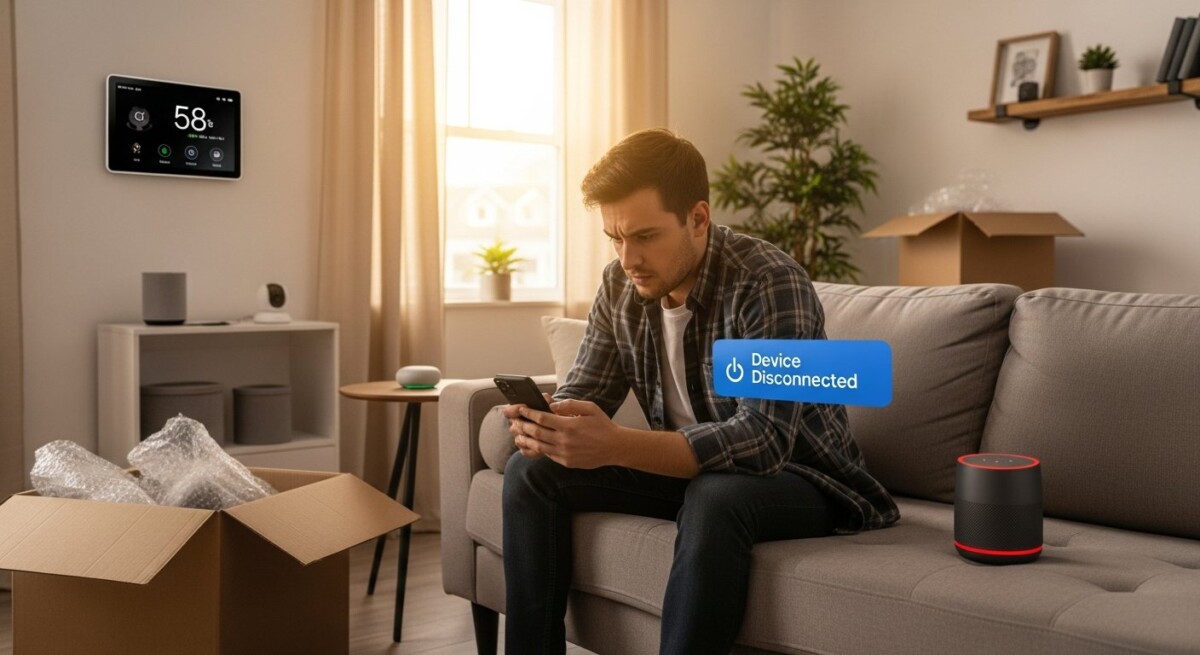
Moving into a new home is an exciting milestone, but it often comes with an unexpected frustration: your smart home devices start disconnecting and reconnecting unpredictably. You set up your smart speaker, connect your thermostat, and link your security cameras, only to find that they drop offline repeatedly. This issue is common, yet many homeowners struggle to identify the root cause. Understanding why moving smart home devices disconnecting reconnecting happens is the first step to restoring a stable, connected home. In this guide, we will explore the technical reasons behind this problem and provide actionable solutions to keep your devices online.
Why Moving Triggers Connectivity Problems
When you relocate, your smart home devices face a completely new environment. The physical layout, construction materials, and existing electronic interference all change. Your old Wi-Fi network settings, device pairings, and hub configurations are no longer valid. This mismatch often causes devices to struggle as they try to reconnect to a network that has different SSIDs, passwords, or frequencies. Additionally, the sheer act of packing and transporting devices can loosen internal components or reset factory settings, compounding the issue.
Another hidden factor is the change in internet service provider or router equipment. Many people upgrade their internet plan or switch to a new modem after moving. Smart home devices are finicky about network bands (2.4 GHz vs. 5 GHz) and security protocols (WPA2 vs. WPA3). If your new router uses a different band or a stronger security setting, older devices may fail to authenticate, leading to constant disconnects and reconnects. Recognizing these triggers helps you diagnose the problem faster.
Common Causes of Smart Home Disconnects After a Move
Several specific factors contribute to the instability of smart home systems in a new residence. Below are the most frequent culprits:
- Network Band Conflicts: Most smart devices only support the 2.4 GHz band. If your new router defaults to 5 GHz or uses band steering, devices may switch bands and drop offline.
- Signal Interference: New homes may have thicker walls, metal studs, or large appliances that block Wi-Fi signals. Microwaves, baby monitors, and cordless phones can also cause interference.
- Device Limits on Router: A new router may have a lower device capacity. When you reconnect all your gadgets at once, the router can become overwhelmed and disconnect some devices.
- Outdated Firmware: Devices that were packed away for weeks may have missed critical firmware updates. Outdated software can cause incompatibility with modern routers.
- Improper Reset Procedures: Some devices require a hard reset after a move to clear old network credentials. Skipping this step leaves them trying to connect to a network that no longer exists.
Each of these issues can be resolved with targeted troubleshooting. For example, separating your 2.4 GHz and 5 GHz networks into distinct SSIDs often resolves band conflicts. Similarly, moving your router to a central location and away from large metal objects can dramatically improve signal strength.
Step-by-Step Guide to Reconnecting Smart Devices
To restore stability, follow a systematic reconnection process. First, ensure your internet service is active and your router is working correctly. Connect a laptop or phone to the Wi-Fi and verify that you have a strong connection. Then, power cycle your router by unplugging it for 30 seconds and plugging it back in. This clears temporary glitches and refreshes the network.
Next, reset each smart home device according to the manufacturer’s instructions. For most devices, this involves holding a reset button for 10-15 seconds or removing the battery. After the reset, open the device’s companion app and follow the setup wizard. Choose the correct 2.4 GHz network and enter the password carefully. If the device supports both bands, select the 2.4 GHz option for better range and compatibility. Repeat this process for each device, one at a time, to avoid overwhelming the router.
If a device continues to disconnect, check for firmware updates within the app. Manufacturers often release patches that improve connectivity with newer routers. Update the firmware and then re-pair the device. In our guide on Choosing Residential Moving Companies for a Smooth Home Relocation, we emphasize the importance of planning ahead. Similarly, planning your device reconnection strategy before you unpack can save hours of frustration.
Optimizing Your Home Network for Smart Devices
After reconnecting your devices, take steps to prevent future disconnects. Invest in a mesh Wi-Fi system if your home is larger than 2,000 square feet or has multiple floors. Mesh systems provide seamless coverage by using multiple nodes that communicate with each other. This eliminates dead zones and ensures your smart devices stay connected even when you move from room to room.
Consider enabling Quality of Service (QoS) settings on your router. QoS prioritizes traffic from smart home devices over less critical activities like streaming or gaming. This ensures that your thermostat, security cameras, and smart locks get the bandwidth they need to maintain a stable connection. Additionally, set a static IP address for each smart device. Static IPs prevent address conflicts that can cause devices to drop offline when the router reassigns IPs during a lease renewal.

Finally, monitor your network with a Wi-Fi analyzer app. These tools show signal strength, channel congestion, and interference sources. If you notice high interference on a particular channel, switch your router to a less crowded channel. For dual-band routers, ensure that the 2.4 GHz band is set to channel 1, 6, or 11, as these are the only non-overlapping channels. Small adjustments like these can have a significant impact on device stability.
When to Seek Professional Help
Sometimes, despite your best efforts, smart home devices continue to disconnect and reconnect. This may indicate a hardware issue with the device itself or a deeper problem with your home’s wiring. If you have tried all the steps above and the problem persists, consider contacting a professional network installer. They can perform a site survey, identify interference sources, and install enterprise-grade access points if needed.
Another option is to consult with your internet service provider. They can test your line quality, check for signal degradation, and upgrade your modem if it is outdated. In rare cases, the issue may stem from electrical noise in your home’s wiring, which can disrupt powerline adapters or smart plugs. A licensed electrician can install filters or dedicated circuits to resolve this. For those planning a move, exploring financing options for new home essentials can help you budget for network upgrades and professional services.
Frequently Asked Questions
Why do my smart lights keep disconnecting after I moved?
Smart lights often rely on a hub or a bridge that must be connected to your router via Ethernet. If the hub is not properly connected or is placed too far from the router, the lights will disconnect. Ensure the hub is hardwired to the router and that the lights are within 30-50 feet of the hub.
Do I need to reset all my smart devices after moving?
Not always, but it is highly recommended. Devices that store previous network credentials may fail to connect to your new network. A factory reset clears this data and forces the device to enter pairing mode, making reconnection smoother.
Can a new router cause smart devices to disconnect?
Yes. Newer routers often use band steering, which moves devices between 2.4 GHz and 5 GHz automatically. Many smart devices only work on 2.4 GHz, so they drop offline when steered to 5 GHz. Disable band steering or create separate SSIDs for each band.
How long does it take for smart devices to reconnect after a move?
The process varies. Reconnecting a single device takes about 5-10 minutes. For a full home with 20-30 devices, expect to spend 2-4 hours. Power cycling the router and resetting devices in batches can speed things up.
Will moving my router help reduce disconnects?
Absolutely. Place your router in a central, elevated location away from walls, floors, and metal objects. Avoid placing it near microwaves, cordless phone bases, or fish tanks, as these can cause interference.
Dealing with moving smart home devices disconnecting reconnecting can be a test of patience, but the solutions are straightforward. By understanding the causes and methodically addressing each device, you can restore a stable smart home environment. Remember to plan ahead, update your network setup, and don’t hesitate to call a professional if needed. A little preparation goes a long way toward making your new house feel like a connected, intelligent home.